> ## Documentation Index
> Fetch the complete documentation index at: https://docs.tradionlabs.com/llms.txt
> Use this file to discover all available pages before exploring further.
# AI Portfolio Analyst
> Chat with your holdings. Grounded in real positions, not hypotheticals.
The AI Portfolio Analyst is a chat workspace sitting on top of your portfolio. It reads your real positions before answering, so when it says a sector is heavy or one position dominates your risk, it is describing your account and not a generic one.
Available on both plans. Every message you send counts against your monthly allowance, 120 on Starter, 250 on Pro. See [Usage limits](/concepts/usage-limits).
 ## The screen
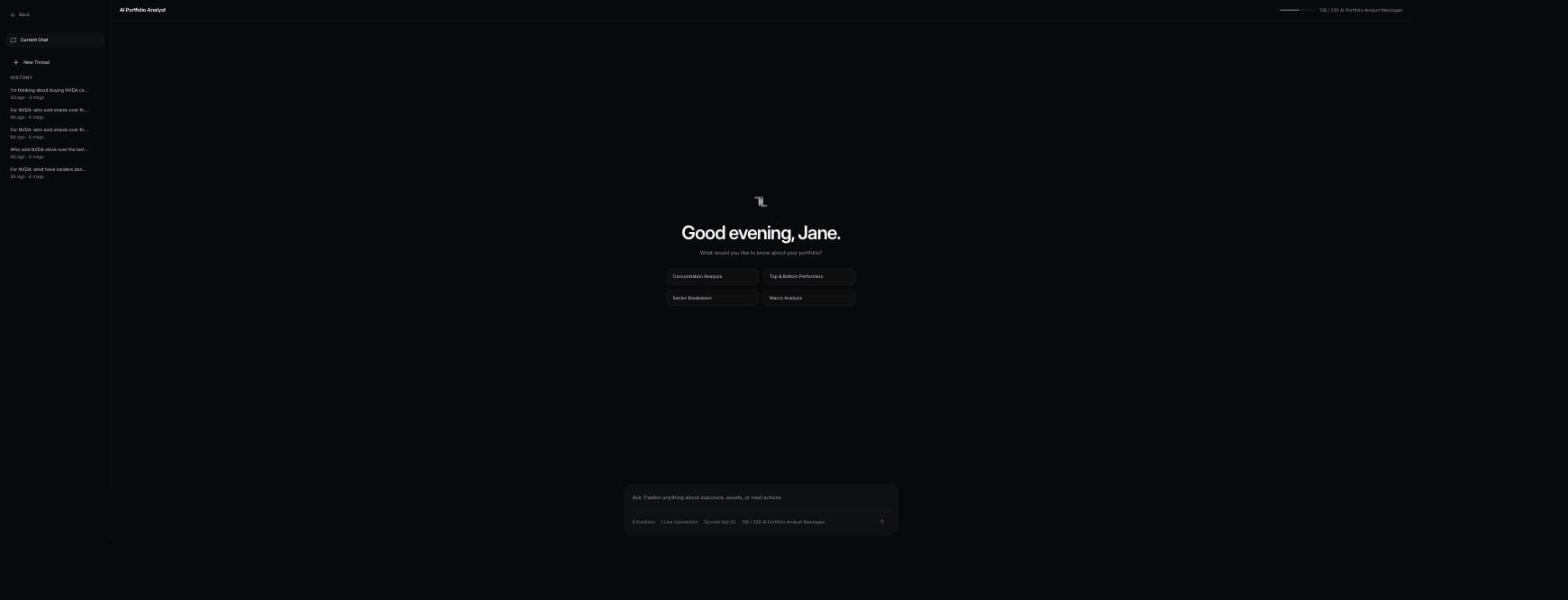
Two columns. **Down the left, your threads**: the conversation you are in, a **New Thread** button, and a **History** list of everything before it, each row showing its title, how long ago it ran, and how many messages it holds. **Filling the rest, the conversation itself**, with the box you type in pinned to the bottom.
That box carries a status row, and it is the first thing to read before asking anything:
| What it reads | What it tells you |
| ------------------------ | ------------------------------------------------------------------------ |
| **{n} Positions** | How many holdings are in the briefing the assistant is about to get |
| **{n} Live Connections** | How many brokerages are feeding it, as opposed to positions you typed in |
| **Synced 20m Ago** | How stale those numbers are. *Waiting for Sync* means it has none yet |
| **{n} / {n} messages** | What is left of this month's allowance. It turns amber under 15 |
A position count of zero means the assistant has nothing to describe, and its answers will be general rather than about your account. Connect a brokerage or add a holding first.
## The positions it sees
The **Manage Positions** tab on the Portfolio page lists every holding the assistant can see, each marked by source:
* **Live:** rows synced from a connected brokerage. These are read-only; edit them through your broker.
* **Manual:** holdings you added yourself. Each row shows a pencil icon to edit the details and a trash icon to remove it. Use manual positions to include accounts you cannot or do not want to connect directly.
Changes there take effect on the next message you send, when the assistant rebuilds its briefing from your current positions.
## Opening a session
Two ways in. Click **AI Portfolio Analyst** in the Portfolio header to land in your current thread, or a fresh one the first time. Or open it from a row in the holdings table, and the session starts already focused on that ticker, so your first question does not have to name it.
A new thread offers four starter prompts (concentration, top and bottom performers, sector breakdown, macro context) for when you want to see the format first. Messages cap at 4,000 characters.
### In plain English
The assistant is not watching your account. It gets one written briefing about your positions at the moment you press send, and answers from that. So:
* Numbers are as fresh as your last sync, not live to the second. Press **Sync** on Portfolio first if a position has changed.
* It has no memory of a thread you archived. Reopening that thread is how you get the context back.
* Nothing it says reaches your broker. It cannot buy, sell, or size anything.
## What it can see
Before each answer, Tradion assembles a briefing from your account:
* Up to six of your positions, each marked **live** if it came from a broker or **manual** if you added it, with shares (a short shows as, for example, "30 short"), **cost basis** (what you paid per share, averaged across your buys), last price, current value, and **unrealised** profit or loss (the paper result on something you still hold, which the price can still take back). If your broker did not report a cost basis for a position, the analyst is told it is unavailable and does not state a profit or loss for it
* Cash balance, how many brokerages are connected, and when they last synced
* Your largest holding and the combined weight of your top three
* Recent closed trades and their outcomes
* Your last few trade autopsies: entry, exit, and risk-management grades, and the mistakes tagged in each
* Your [Tradion Memory](/concepts/tradion-memory) profile: trade count, average grades, recurring mistakes, favoured setups, the dollar cost and trade count of each mistake pattern, and your saved Playbook rules
It can also pull live data mid-answer: quotes, price history, fundamentals, options chains, earnings dates and estimates, insider transactions, news and sentiment, macro indicators, and web search.
### What it cannot do
It cannot place, change, or cancel an order; the brokerage link is read-only. It does not see your personal details, bank links, or tax documents. It reads the last 8 messages of the thread, and at most 2,000 characters of each, so a point made much earlier may need restating. With personalisation off, your Tradion Memory profile, mistake costs and Playbook rules are withheld; your positions, recent trades, and autopsy grades with the mistakes tagged in each are still used.
## Questions worth asking
Swap your own tickers into these. Each one has a factual answer the assistant can reach for:
* "Which of my positions carry the most risk right now, and why?"
* "Break my portfolio down by sector and show it as a pie chart."
* "What percentage of my account is in my top three positions?"
* "How correlated are {TICKER_A} and {TICKER_B}? Am I holding the same bet twice?" **Correlation** measures how closely two tickers have moved together historically, from +1 (in lockstep) through 0 (unrelated) to −1 (opposite).
* "Which holdings have earnings in the next two weeks?"
* "Compare my open winners and losers and chart them."
* "Given my documented mistakes, which position am I most likely to mishandle?"
Vague questions get vague answers. "How am I doing?" produces a survey; "which position has moved furthest from its cost basis, and what changed" produces something you can act on.
## Running what-ifs
Scenario questions hold your real positions still and move one variable:
* "What happens to my account if {TICKER} drops 20%?"
* "If technology sold off 10% tomorrow, how much of my portfolio moves?"
* "If I closed my two largest positions, what would my sector mix look like?"
These are arithmetic on your live weights, not predictions. Nothing in the answer is a recommendation to trade. The assistant produces the analysis and you decide.
## Charts inside the answer
When a visual works better than a sentence, the assistant draws one directly after the text that introduces it. Bar, line, area, pie, and mixed bar-and-line are available, each interactive: hover a segment for its value. Answers stream as they are written, so charts appear mid-response.
## Moving to another feature
Answers point at the feature that goes deeper rather than doing everything in chat: [Earnings Deep Research](/research/ai-earnings-research) for a company's quarter, [Trade Autopsy](/trade-intelligence/trade-autopsy) for a pattern in how you exit. The ticker travels with you.
## Threads and your allowance
Clicking a row in History reopens that thread in full, charts included. **New Thread** archives the current conversation rather than deleting it, which stops old context bleeding into a new topic; you can also delete a thread outright, with a confirmation step.
Sending a message spends one from your allowance whether the answer proves useful or not, so a thread of one-word follow-ups burns through it fast. At zero the box you type in locks and its placeholder changes to *No AI Portfolio Analyst Messages remaining this month*, until your billing month rolls over or you move up a plan.
What each counter measures and when it resets.
Message allowances and everything else, side by side.
## The screen
Two columns. **Down the left, your threads**: the conversation you are in, a **New Thread** button, and a **History** list of everything before it, each row showing its title, how long ago it ran, and how many messages it holds. **Filling the rest, the conversation itself**, with the box you type in pinned to the bottom.
That box carries a status row, and it is the first thing to read before asking anything:
| What it reads | What it tells you |
| ------------------------ | ------------------------------------------------------------------------ |
| **{n} Positions** | How many holdings are in the briefing the assistant is about to get |
| **{n} Live Connections** | How many brokerages are feeding it, as opposed to positions you typed in |
| **Synced 20m Ago** | How stale those numbers are. *Waiting for Sync* means it has none yet |
| **{n} / {n} messages** | What is left of this month's allowance. It turns amber under 15 |
A position count of zero means the assistant has nothing to describe, and its answers will be general rather than about your account. Connect a brokerage or add a holding first.
## The positions it sees
The **Manage Positions** tab on the Portfolio page lists every holding the assistant can see, each marked by source:
* **Live:** rows synced from a connected brokerage. These are read-only; edit them through your broker.
* **Manual:** holdings you added yourself. Each row shows a pencil icon to edit the details and a trash icon to remove it. Use manual positions to include accounts you cannot or do not want to connect directly.
Changes there take effect on the next message you send, when the assistant rebuilds its briefing from your current positions.
## Opening a session
Two ways in. Click **AI Portfolio Analyst** in the Portfolio header to land in your current thread, or a fresh one the first time. Or open it from a row in the holdings table, and the session starts already focused on that ticker, so your first question does not have to name it.
A new thread offers four starter prompts (concentration, top and bottom performers, sector breakdown, macro context) for when you want to see the format first. Messages cap at 4,000 characters.
### In plain English
The assistant is not watching your account. It gets one written briefing about your positions at the moment you press send, and answers from that. So:
* Numbers are as fresh as your last sync, not live to the second. Press **Sync** on Portfolio first if a position has changed.
* It has no memory of a thread you archived. Reopening that thread is how you get the context back.
* Nothing it says reaches your broker. It cannot buy, sell, or size anything.
## What it can see
Before each answer, Tradion assembles a briefing from your account:
* Up to six of your positions, each marked **live** if it came from a broker or **manual** if you added it, with shares (a short shows as, for example, "30 short"), **cost basis** (what you paid per share, averaged across your buys), last price, current value, and **unrealised** profit or loss (the paper result on something you still hold, which the price can still take back). If your broker did not report a cost basis for a position, the analyst is told it is unavailable and does not state a profit or loss for it
* Cash balance, how many brokerages are connected, and when they last synced
* Your largest holding and the combined weight of your top three
* Recent closed trades and their outcomes
* Your last few trade autopsies: entry, exit, and risk-management grades, and the mistakes tagged in each
* Your [Tradion Memory](/concepts/tradion-memory) profile: trade count, average grades, recurring mistakes, favoured setups, the dollar cost and trade count of each mistake pattern, and your saved Playbook rules
It can also pull live data mid-answer: quotes, price history, fundamentals, options chains, earnings dates and estimates, insider transactions, news and sentiment, macro indicators, and web search.
### What it cannot do
It cannot place, change, or cancel an order; the brokerage link is read-only. It does not see your personal details, bank links, or tax documents. It reads the last 8 messages of the thread, and at most 2,000 characters of each, so a point made much earlier may need restating. With personalisation off, your Tradion Memory profile, mistake costs and Playbook rules are withheld; your positions, recent trades, and autopsy grades with the mistakes tagged in each are still used.
## Questions worth asking
Swap your own tickers into these. Each one has a factual answer the assistant can reach for:
* "Which of my positions carry the most risk right now, and why?"
* "Break my portfolio down by sector and show it as a pie chart."
* "What percentage of my account is in my top three positions?"
* "How correlated are {TICKER_A} and {TICKER_B}? Am I holding the same bet twice?" **Correlation** measures how closely two tickers have moved together historically, from +1 (in lockstep) through 0 (unrelated) to −1 (opposite).
* "Which holdings have earnings in the next two weeks?"
* "Compare my open winners and losers and chart them."
* "Given my documented mistakes, which position am I most likely to mishandle?"
Vague questions get vague answers. "How am I doing?" produces a survey; "which position has moved furthest from its cost basis, and what changed" produces something you can act on.
## Running what-ifs
Scenario questions hold your real positions still and move one variable:
* "What happens to my account if {TICKER} drops 20%?"
* "If technology sold off 10% tomorrow, how much of my portfolio moves?"
* "If I closed my two largest positions, what would my sector mix look like?"
These are arithmetic on your live weights, not predictions. Nothing in the answer is a recommendation to trade. The assistant produces the analysis and you decide.
## Charts inside the answer
When a visual works better than a sentence, the assistant draws one directly after the text that introduces it. Bar, line, area, pie, and mixed bar-and-line are available, each interactive: hover a segment for its value. Answers stream as they are written, so charts appear mid-response.
## Moving to another feature
Answers point at the feature that goes deeper rather than doing everything in chat: [Earnings Deep Research](/research/ai-earnings-research) for a company's quarter, [Trade Autopsy](/trade-intelligence/trade-autopsy) for a pattern in how you exit. The ticker travels with you.
## Threads and your allowance
Clicking a row in History reopens that thread in full, charts included. **New Thread** archives the current conversation rather than deleting it, which stops old context bleeding into a new topic; you can also delete a thread outright, with a confirmation step.
Sending a message spends one from your allowance whether the answer proves useful or not, so a thread of one-word follow-ups burns through it fast. At zero the box you type in locks and its placeholder changes to *No AI Portfolio Analyst Messages remaining this month*, until your billing month rolls over or you move up a plan.
What each counter measures and when it resets.
Message allowances and everything else, side by side.