
- price breaks one of the day’s key levels, the dashed lines on the chart such as yesterday’s high and close (or a break is withdrawn);
- a volume spike, meaning a minute that trades at least 3 times its usual volume for that time of day;
- a trading halt, or trading resuming;
- news on the ticker;
- a candle that the market data provider, Alpaca, corrects after the fact.
The AI stream
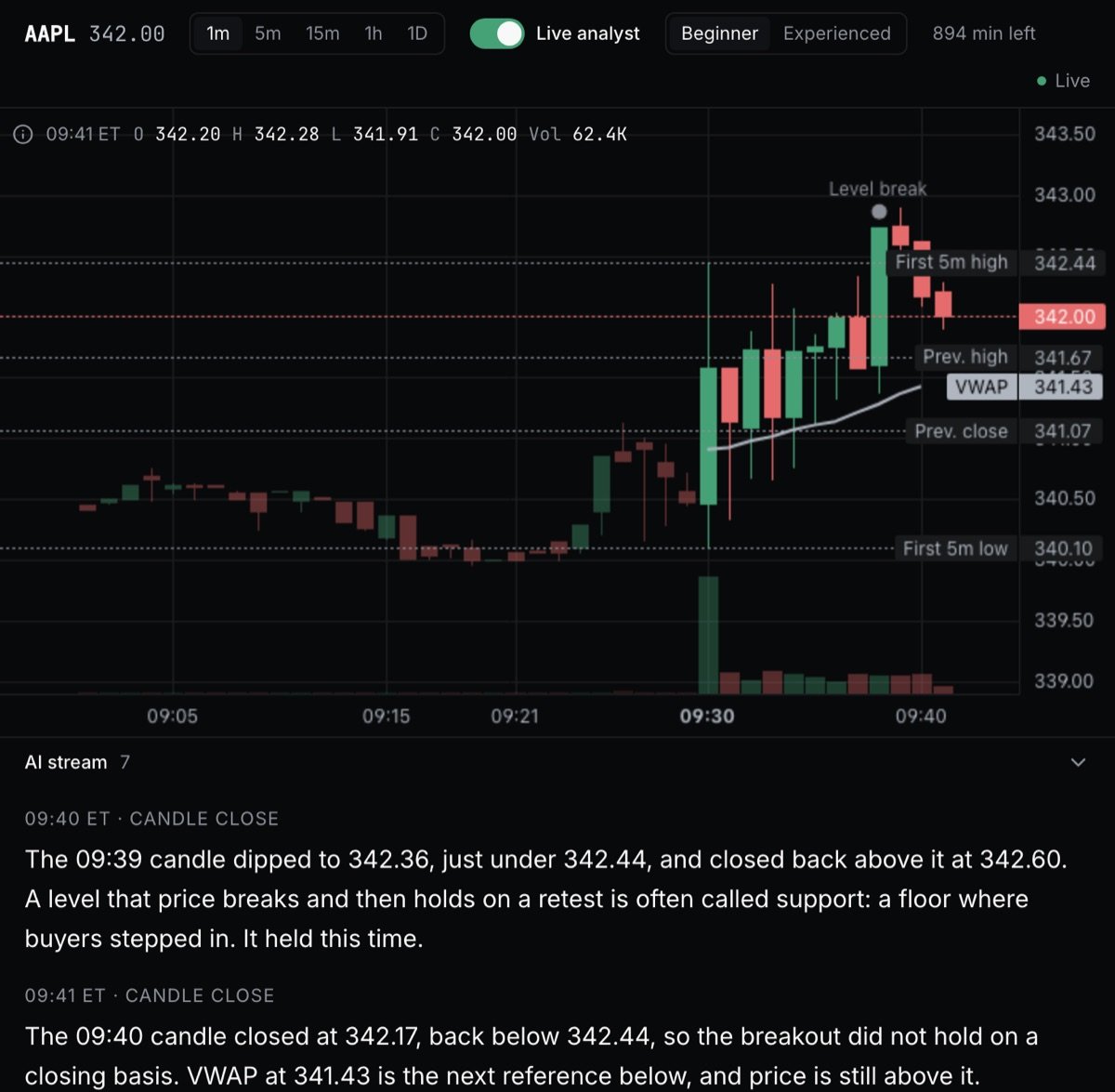
The live analyst on, in the Beginner style, with minutes left beside the switch. Each closed candle gets a comment in the AI stream.
When it runs
The live analyst runs from 4:00 AM to 8:00 PM ET on trading days, which covers pre-market, the regular session and after hours. On early-close days the window ends earlier (5:00 PM ET when the market closes at 1:00 PM). Outside the window the switch won’t turn on, but the chart, chat and snapshots work any time. When the window ends, the last candle gets its comment within about two minutes, and then the analyst pauses with Paused: the market session is over.One live analyst at a time
You have one live analyst, and it runs in one session in one browser tab. Open another session or tab and the toolbar says Live analyst is running in another session or tab, with a Bring it here link that moves it. Change the timeframe and the analyst follows the chart.How live time is counted
Live time is counted in whole minutes. The first minute is charged when the analyst starts, and each later minute as it begins. Stopping partway through a minute doesn’t give that minute back. The clock only runs while all of these are true:- the switch is on and the analyst isn’t paused;
- the tab is visible on your screen;
- market data is flowing;
- it is inside the 4:00 AM to 8:00 PM ET window.
The clock stops the moment the tab is hidden; the pause label follows 30 seconds later. After 15 minutes paused, the live analyst ends, and you turn it on again when you want it.
Monthly minutes are used first, then any hours you bought. Monthly minutes reset to your plan’s amount on your billing date and don’t roll over.
When your minutes run out
The analyst pauses with Paused: no live minutes left and an upgrade prompt opens. From there you can:- Add 5 hours for $10. Bought hours never expire, are used after your plan’s monthly minutes, and stay on your account through renewals, plan changes and cancellation. They’re for paying subscribers, so not during the free trial. You can also buy them any time from Settings → Monthly Usage.
- Upgrade to Pro for 40 hours a month.
- Wait for your monthly minutes to reset.
In plain English
Think of it as a commentator, not an advisor: it says what happened on the chart a moment ago and why it might matter, and leaves the decision to you. You pay for its time only while it can actually watch, so a hidden tab, ten idle minutes or a data outage doesn’t use up your hours.Tradion Lens
Sessions, the chart, the chat, and snapshots.
Usage limits
Live minutes, snapshots, and when they reset.
Troubleshooting
Waiting for market data, pauses, and the analyst in another tab.
Plan comparison
15 hours on Starter, 40 on Pro, and extra hours.